
Android applications are commonly distributed as APK files. During penetration testing, these APKs can be unpacked and decompiled to analyze their internal components and source code. In many cases we may also need to modify the app and repack it to do further testing. Understanding this workflow is an essential skill in Android application security testing and reverse engineering.
In this article, I will use a small test application called Devvice Info to walk through that process. Download the test application here: https://files.knightsquad.academy/downloads/DevviceInfo_APK.zip
For the Android testing environment, I will be using Genymotion. You can use any other test device. Before we start modifying the APK, we will first set up the application on our test device and take a quick look at how it behaves in its original form.
Installing and checking the App
First, check that the Genymotion device is connected and visible to ADB:
adb devices
Once the device appears in the list, install the APK with the following command:
adb install path/to/academy.knightsquad.devviceinfo.apk
Only one Genymotion device is running on my system, so there is no need to specify a device ID in the command. If you have multiple device running remember to use the specific device ID.
After the installation is complete, open Devvice Info on the Genymotion device.
At this point, the application should launch normally and display the device information just like the following screenshot :
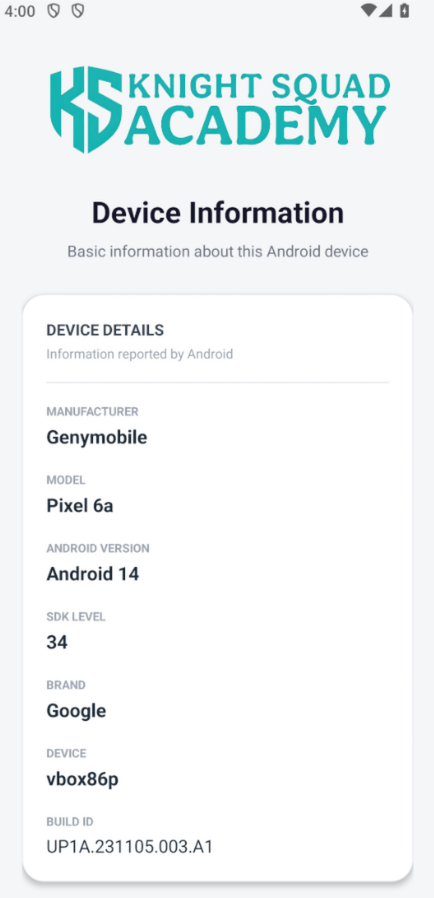
Now that we have confirmed the original APK is working, we can decompile it, make a small modification, then rebuild and sign the APK again.
Decompiling the APK
We can use the Apktool to decompile the APK file. It will extract the application resources, AndroidManifest.xml, and smali code so we can inspect and modify them.
You can run the following command to decompile the APK file :
apktool d -r path/to/academy.knightsquad.devviceinfo.apk -o devviceinfo
The command will save all the files inside devviceinfo directory.
Making a Simple Modification
The AndroidManifest.xml file contains important information about the application, including its package name, permissions, activities, services, and other components.
<?xml version="1.0" encoding="utf-8" standalone="no"?><manifest xmlns:android="http://schemas.android.com/apk/res/android" android:compileSdkVersion="36" android:compileSdkVersionCodename="16" package="academy.knightsquad.devviceinfo" platformBuildVersionCode="36" platformBuildVersionName="16">
    <permission android:name="academy.knightsquad.devviceinfo.DYNAMIC_RECEIVER_NOT_EXPORTED_PERMISSION" android:protectionLevel="signature"/>
    <uses-permission android:name="academy.knightsquad.devviceinfo.DYNAMIC_RECEIVER_NOT_EXPORTED_PERMISSION"/>
    <application android:allowBackup="true" android:appComponentFactory="androidx.core.app.CoreComponentFactory" android:dataExtractionRules="@xml/data_extraction_rules" android:extractNativeLibs="false" android:fullBackupContent="@xml/backup_rules" android:icon="@mipmap/ic_launcher" android:label="@string/app_name" android:roundIcon="@mipmap/ic_launcher_round" android:supportsRtl="true" android:theme="@style/Theme.DevviceInfo">
        <activity android:exported="true" android:name="academy.knightsquad.devviceinfo.MainActivity">
            <intent-filter>
                <action android:name="android.intent.action.MAIN"/>
                <category android:name="android.intent.category.LAUNCHER"/>
            </intent-filter>
        </activity>
        <provider android:authorities="academy.knightsquad.devviceinfo.androidx-startup" android:exported="false" android:name="androidx.startup.InitializationProvider">
            <meta-data android:name="androidx.emoji2.text.EmojiCompatInitializer" android:value="androidx.startup"/>
            <meta-data android:name="androidx.lifecycle.ProcessLifecycleInitializer" android:value="androidx.startup"/>
            <meta-data android:name="androidx.profileinstaller.ProfileInstallerInitializer" android:value="androidx.startup"/>
        </provider>
        <receiver android:directBootAware="false" android:enabled="true" android:exported="true" android:name="androidx.profileinstaller.ProfileInstallReceiver" android:permission="android.permission.DUMP">
            <intent-filter>
                <action android:name="androidx.profileinstaller.action.INSTALL_PROFILE"/>
            </intent-filter>
            <intent-filter>
                <action android:name="androidx.profileinstaller.action.SKIP_FILE"/>
            </intent-filter>
            <intent-filter>
                <action android:name="androidx.profileinstaller.action.SAVE_PROFILE"/>
            </intent-filter>
            <intent-filter>
                <action android:name="androidx.profileinstaller.action.BENCHMARK_OPERATION"/>
            </intent-filter>
        </receiver>
    </application>
</manifest>
As you can see in AndroidManifest.xml file content, the application has only one activity, MainActivity, which is also configured as the launcher activity. We will make a simple modification by changing the Device Information text displayed in the application. After making the change, we will rebuild and install the modified APK.
Now, open the smali file for MainActivity. In this application, you can find it at:
devviceinfo/smali/academy/knightsquad/devviceinfo/MainActivity.smali
Inside the file, look for the following line:
const-string v1, "Device Information"
Change the text to something else, for example:
const-string v1, "Modified Device Information"
Save the file after making the change. Once the APK is rebuilt, the application will display the updated text. In a real penetration test, you may need to modify application logic, conditions, values, or other behavior depending on what you are testing.
Rebuilding the APK
Now that the modification is complete, we can rebuild the application with Apktool:
apktool b devviceinfo -o devviceinfo-modified.apk
Apktool will compile the modified files and create a new APK named devviceinfo-modified.apk.
Android requires APK files to be signed before they can be installed. We can use keytool to create a signing key and apksigner to sign the modified APK.
First, generate a new keystore:
keytool -genkeypair -v -keystore devviceinfo.keystore -alias devviceinfo -keyalg RSA -keysize 2048 -validity 10000
Here:
-keystore devviceinfo.keystoresets the name of the keystore file.-alias devviceinfosets the name used to identify the key inside the keystore.-keyalg RSAuses RSA as the key algorithm.-keysize 2048creates a 2048-bit key.-validity 10000sets how long the certificate will remain valid, in days.
During this process, keytool will ask you to set a password and provide some basic certificate information. After giving all the information it will generate the keystore file devviceinfo.keystore.
Once the keystore is created, sign the modified APK:
apksigner sign --ks devviceinfo.keystore devviceinfo-modified.apk
You can verify the signature with:
apksigner verify --verbose devviceinfo-modified.apk
Once the verification succeeds, the modified APK is ready to install on the test device.
Installing the Modified APK
Before installing the modified APK, uninstall the original version from the device:
adb uninstall academy.knightsquad.devviceinfo
Then install the newly signed APK:
adb install devviceinfo-modified.apk
Once the installation is complete, open Devvice Info again. You should now see the modified text instead of the original Device Information text.
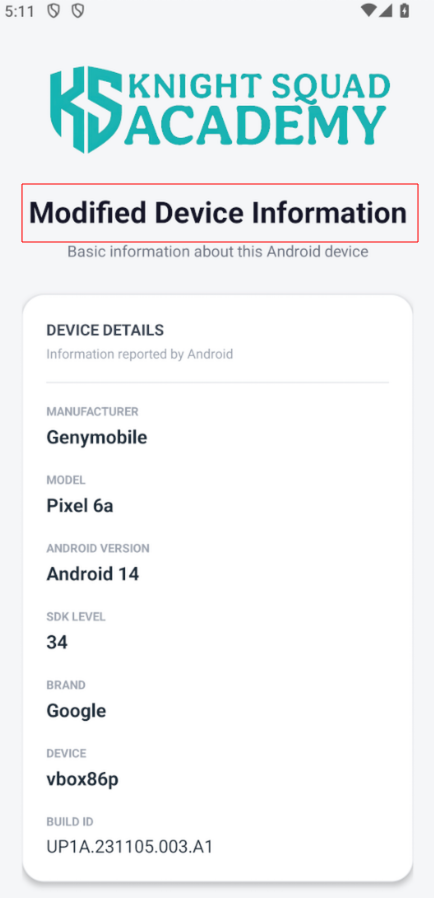
In this article, we made a simple change to a string inside the application, rebuilt the APK, signed it, and installed the modified version on our test device.
During a real penetration test, the changes may be more complex. You may need to modify application logic, change conditions or return values, bypass security checks, or alter other parts of the application to understand how it behaves.